Symbols
A symbol is a reusable object you handle and animate as one: you wrap one or more drawings inside it, and it gets its own inner timeline. Every symbol lives in the library, so you can drop it on the stage as many times as you like — each copy is an instance, and editing the symbol updates them all.
Create a symbol
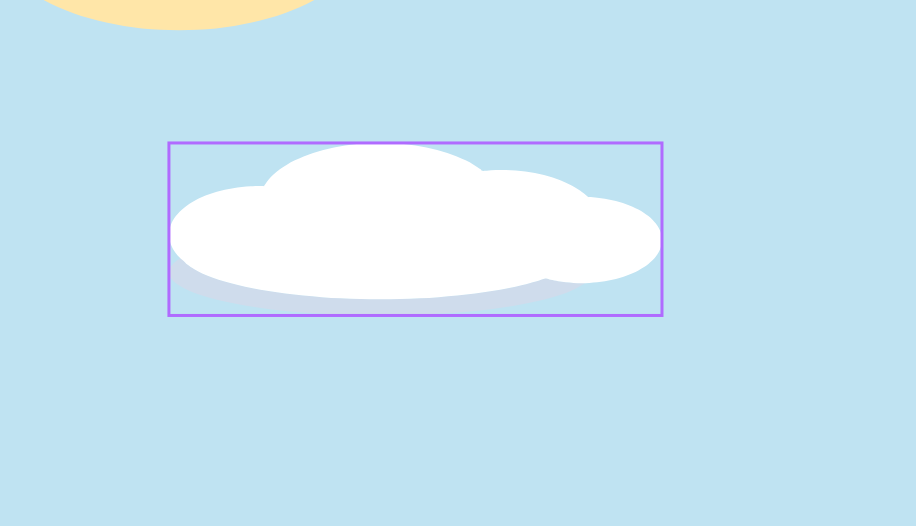
Select your drawing and turn it into a symbol (shortcut F8). Your shapes are wrapped into a single object and sent straight to the library; an instance is left in its place on the stage. One click selects the whole thing, and you move, rotate or resize it as one.
Animate it with a tween
This is where symbols shine: you animate them as a unit. Drop a keyframe, move forward in time, move the instance: FlatInk interpolates the motion between the two poses. That’s a tween, and it glides the symbol smoothly without redrawing every frame.

Tip: on the track, double-click the span between two keyframes to turn the tween on or off.

Reuse it from the library
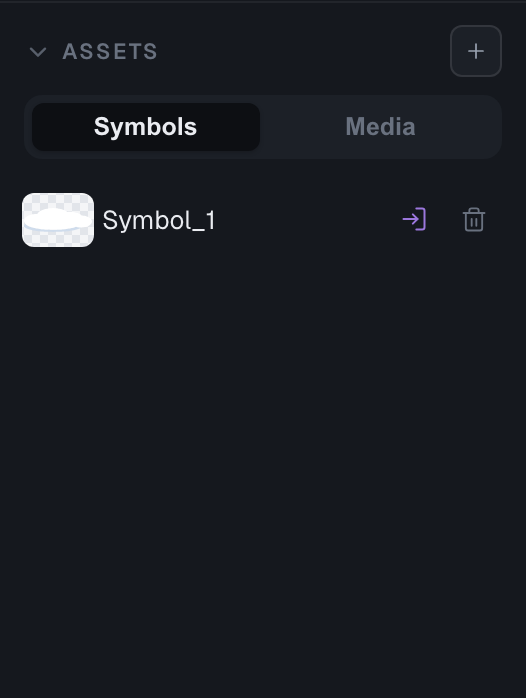
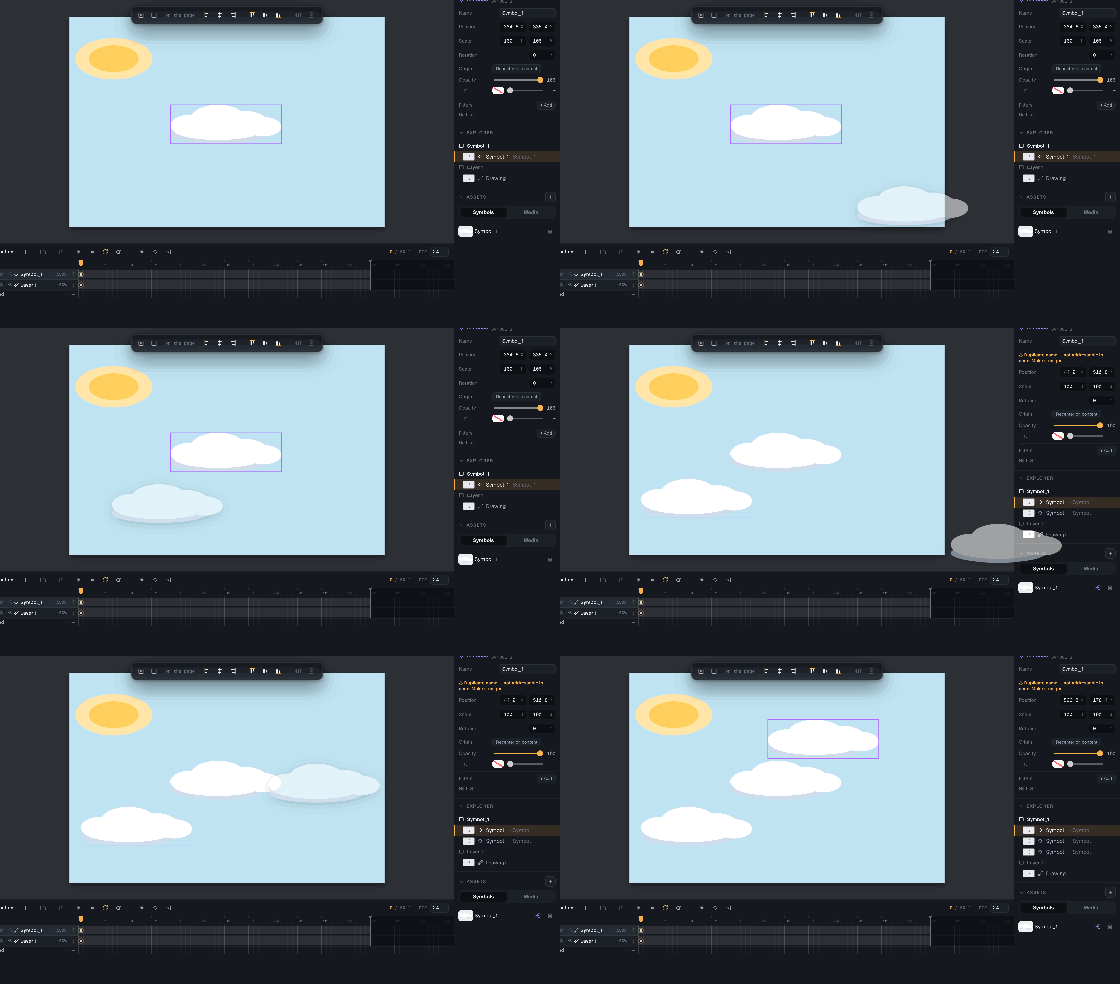
The symbol is already in the library (Assets panel). Drag its thumbnail onto the scene to drop as many copies as you like — each one is an instance of the same symbol.
Edit once, update everywhere
Because every instance points at the same symbol, editing it updates them all at once. Open the symbol, change something (here, its color), step back out: each instance follows, no one-by-one retouching.


Group without the library (Ctrl+G)
Sometimes you just want to bundle a few shapes to move them together — without filling the library. That’s a group (Ctrl+G): a throwaway container, double-click to edit it in place, but with no inner timeline and no library entry. The moment you need to animate inside it, or reuse it, turn it into a symbol (F8).
Organize the library into folders
As your library grows, tidy it with folders (the folder button in the Assets header, or “New subfolder” on a folder). Drag a symbol onto a folder to file it; drag it back onto empty space to move it to the root. Folders are pure organization — symbols are still referenced by their (unique) name, so moving one between folders never breaks a reference.
Keep an independent copy
An instance stays linked to its symbol. If you want one copy to evolve on its own, separate it from the symbol: it becomes an ordinary drawing again, editable without affecting the rest.